How to Choose the Best SSD for Your PC or Laptop: Complete SSD Buying Guide
Learn how to choose the right SSD for your PC or laptop. Compare SATA, M.2 SATA and NVMe
SSDs, understand storage capacity and speed, and find the right SSD for your needs.
Store Admin··4 min read
How to Choose the Best SSD for Your PC or Laptop
Upgrading your computer with an SSD is one of the easiest ways to improve overall system responsiveness. Compared with traditional hard disk drives, SSDs offer faster data access, quicker boot times and a smoother computing experience. However, with different types, capacities and interfaces available, choosing the best SSD for your PC or laptop can sometimes be confusing.
Whether you are building a new PC, upgrading an older laptop or looking for faster storage, understanding the basics of SSD technology can help you make the right choice.
What Is an SSD?
An SSD, or Solid State Drive, is a storage device that uses flash memory to store your data. Unlike an HDD, an SSD has no moving mechanical parts. This allows it to provide faster access to files, applications and operating system data.
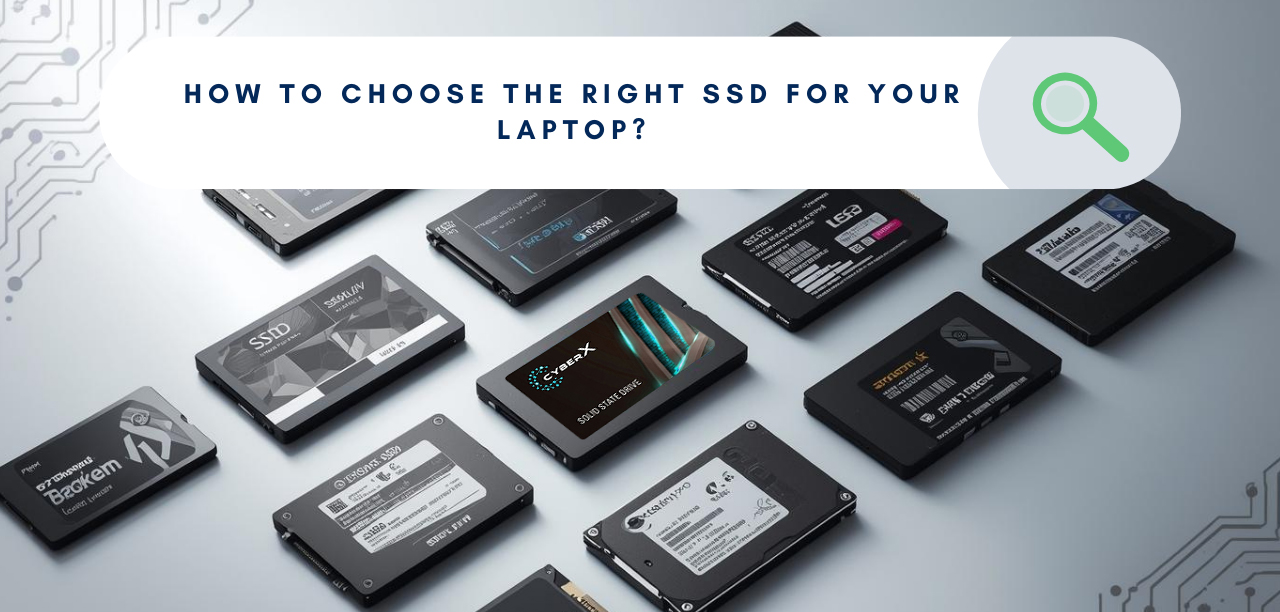
SSDs are available in different form factors and interfaces. The most common options include 2.5-inch SATA SSDs, M.2 SATA SSDs and M.2 NVMe SSDs.
Types of SSDs
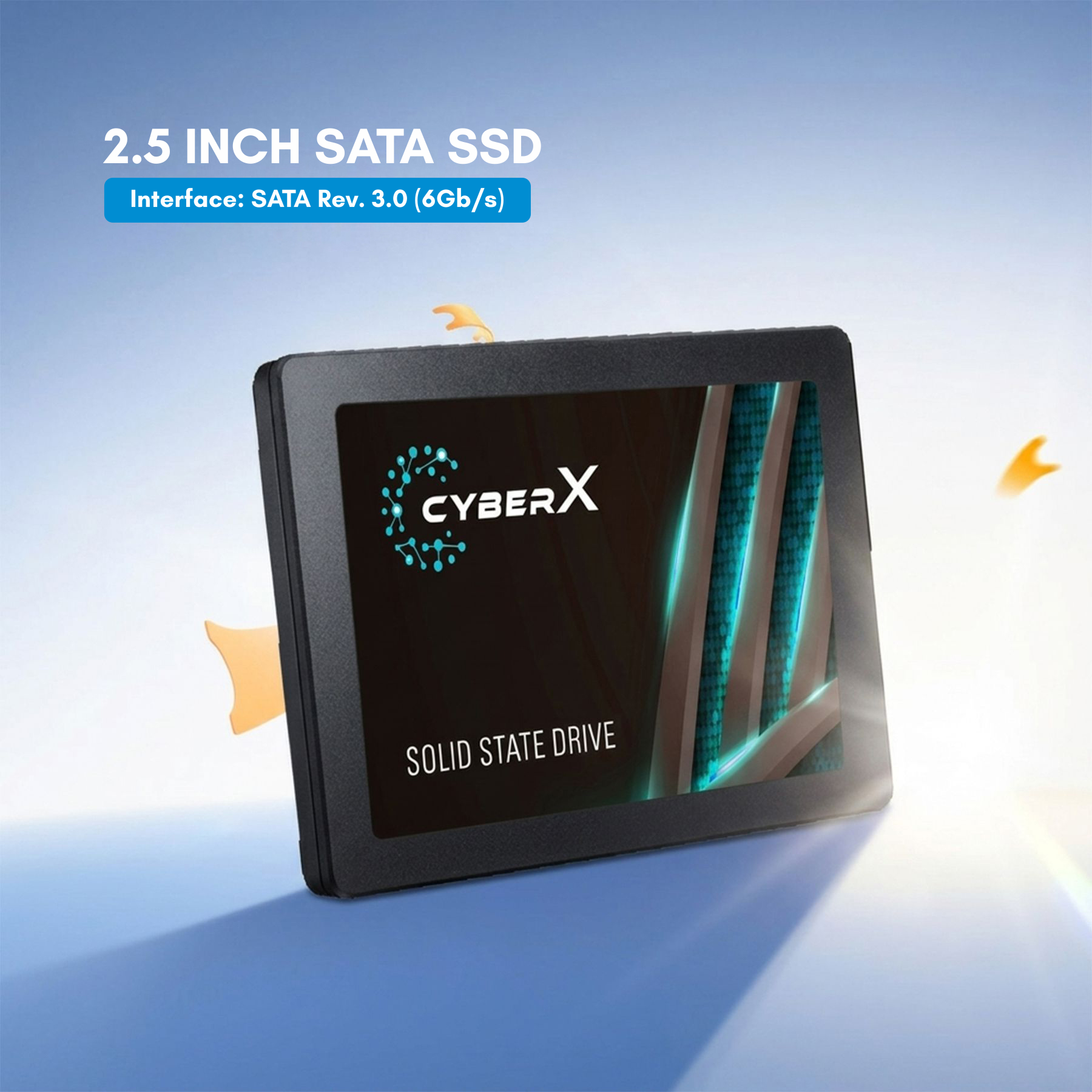
1. 2.5-Inch SATA SSD
A 2.5-inch SATA SSD is a popular upgrade option for desktops and laptops that support SATA storage. It uses the SATA interface and is a practical choice for replacing an older HDD.
Suitable for many desktops and laptops
Easy HDD replacement
Faster and more responsive than traditional HDD storage
Available in multiple storage capacities
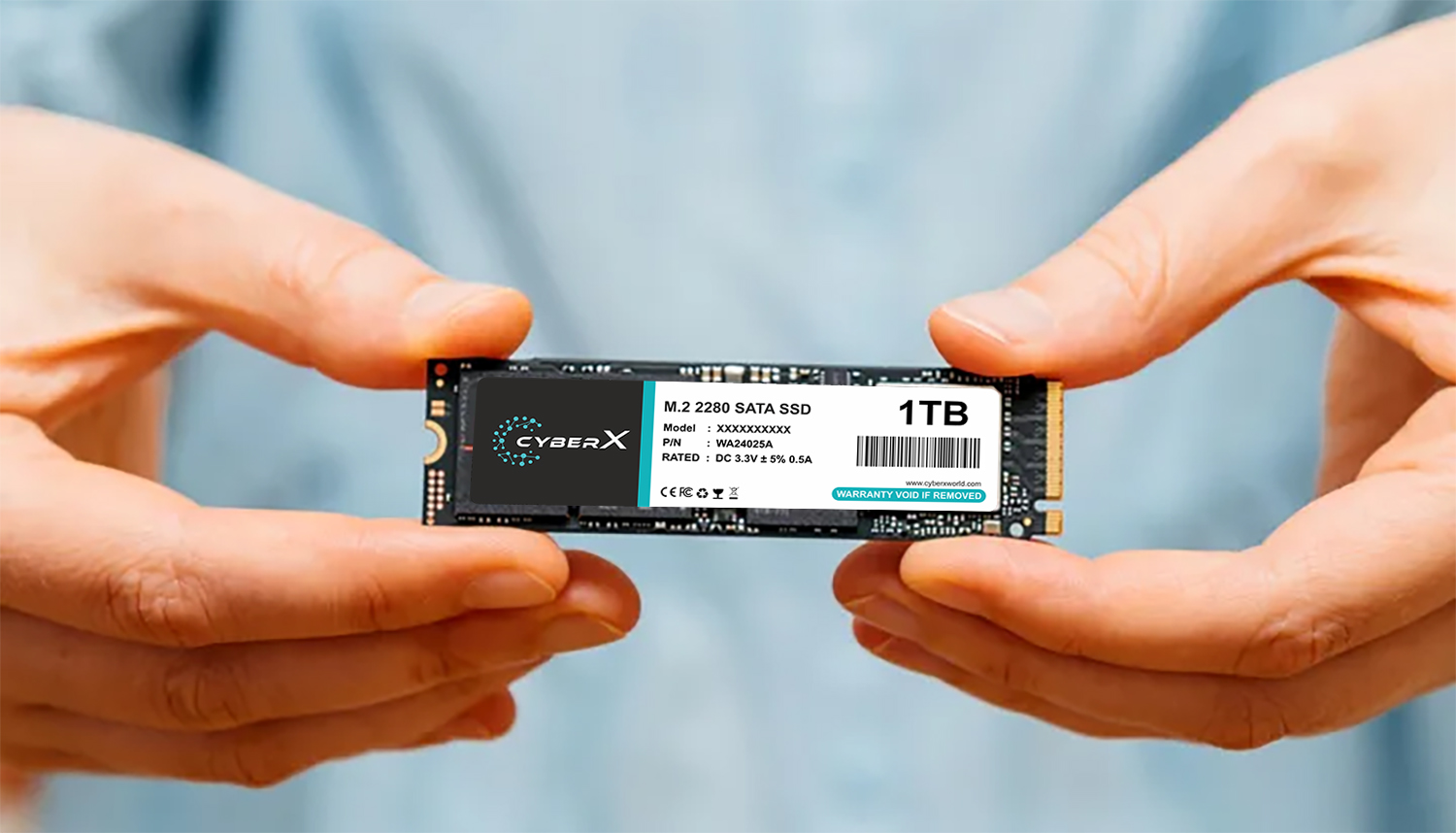
2. M.2 SATA SSD
M.2 SATA SSDs use the compact M.2 form factor while communicating through the SATA interface. Their small size makes them useful for compatible laptops and compact PC builds.
Before purchasing an M.2 SATA SSD, always check whether your motherboard or laptop supports an M.2 SATA drive.
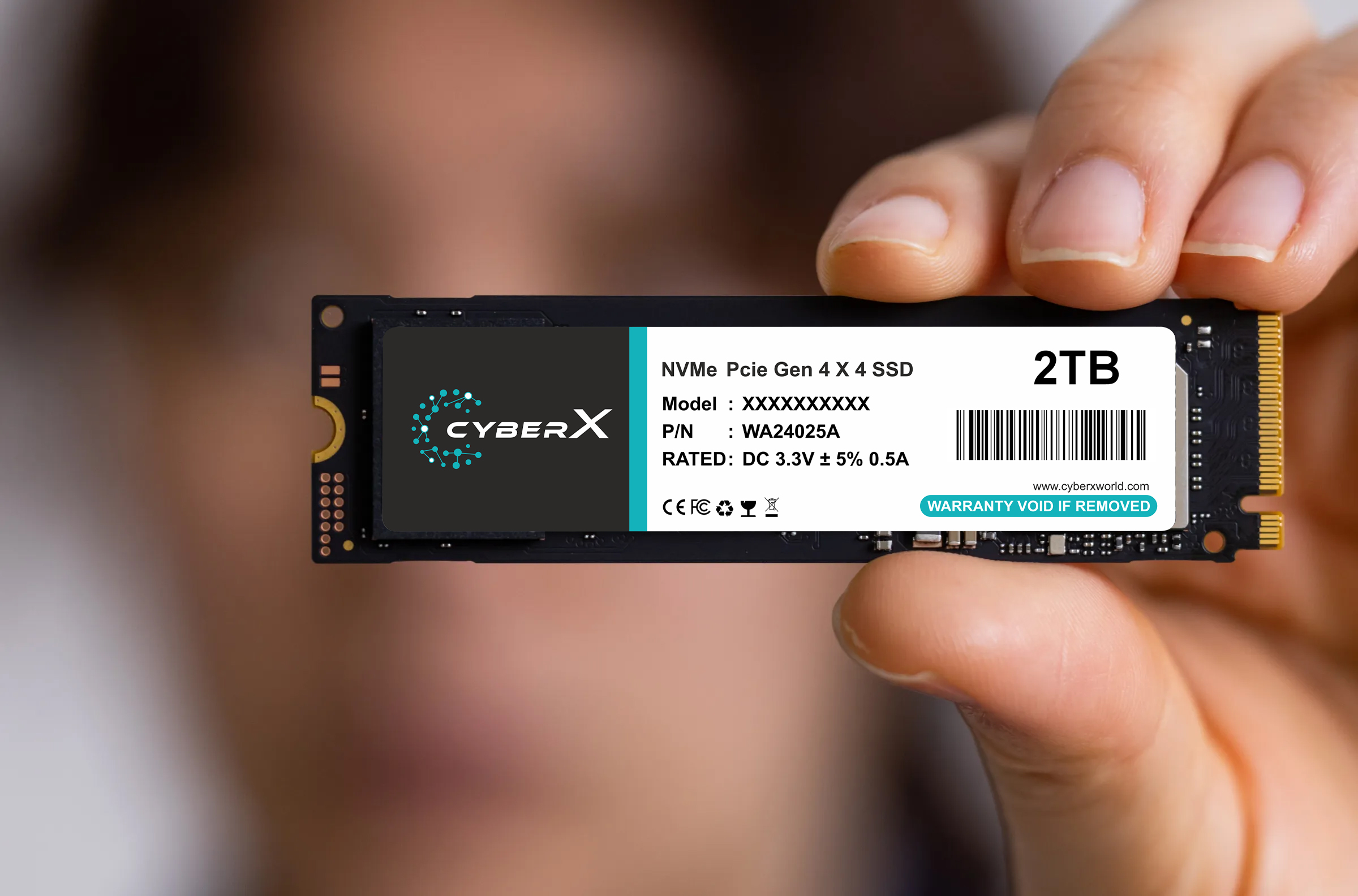
3. M.2 NVMe SSD
NVMe SSDs use the PCIe interface and are designed for high-speed data transfer. They are an excellent option for modern PCs, gaming systems, professional applications and users who regularly work with large files.
For the best performance, check the PCIe generation supported by your motherboard or laptop before choosing an NVMe SSD.
How Much SSD Storage Do You Need?
The right storage capacity depends on how you use your computer.
128GB–256GB: Suitable for basic computing and lightweight storage requirements.
512GB: A good balance for everyday computing, applications and personal files.
1TB: Recommended for users who need more space for games, software, media and work files.
2TB or more: Ideal for large game libraries, video projects and extensive data storage.
SSD Speed: What Should You Look For?
SSD performance is commonly described using sequential read and write speeds. Higher speeds can be especially useful when transferring large files, loading applications or working with demanding workloads.
However, speed should not be the only factor in your buying decision. Compatibility, capacity, reliability, warranty and your actual workload are also important.
SSD Compatibility Checklist
Before buying an SSD, check these specifications:
Supported interface: SATA or PCIe/NVMe
Form factor: 2.5-inch or M.2
Supported M.2 key and protocol where applicable
Available storage capacity
Operating system requirements
Motherboard or laptop compatibility
Why Upgrade From HDD to SSD?
Moving from an HDD to an SSD can make everyday computing feel significantly more responsive. Operating system startup, application launches and file access can become faster, while the absence of moving mechanical components also makes SSDs more resistant to physical shock than traditional HDDs.
Choose the Right SSD With CyberX
CyberX offers storage solutions designed for different computing requirements, including SATA SSDs, M.2 SATA SSDs and NVMe SSDs. Whether you need an SSD for everyday computing, a laptop upgrade, gaming or professional workloads, choosing the correct interface and capacity is essential.
Explore the CyberX SSD range at CyberXWorld.com and select storage according to your system compatibility and performance requirements.
Final Thoughts
The best SSD is not necessarily the one with the highest advertised speed. The right choice is the SSD that matches your device, interface, storage requirement and workload. Check compatibility first, choose an appropriate capacity and then compare performance and features.
With the right SSD upgrade, your PC or laptop can have a faster and more responsive storage experience.